 By Admin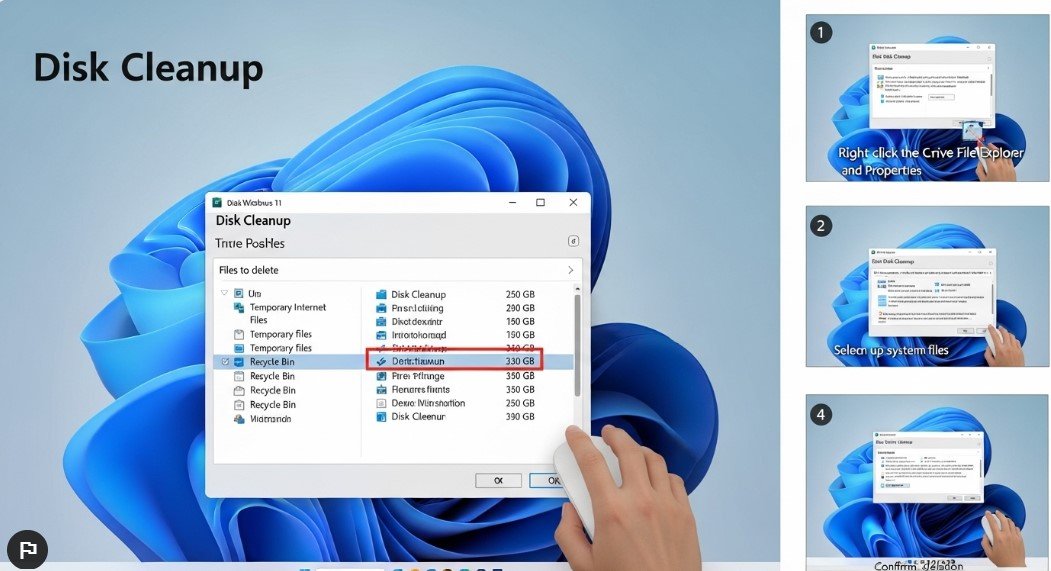
Windows 11 brings a modern and sleek interface, packed with features designed to enhance productivity and usability. However, even with its advanced design, storage management can become an issue if unnecessary files accumulate over time. Performing a disk cleanup in Windows 11 is essential for maintaining system performance, ensuring smooth operation, and maximizing storage efficiency.
In this article, we’ll explore everything you need to know about cleaning up your disk in Windows 11, including built-in tools, easy tips, and expert recommendations. By following this guide, you can reclaim valuable storage space and keep your PC running at its best.
What Is Disk Cleanup in Windows 11?
Disk cleanup is the process of removing temporary files, system cache, and other unnecessary data that take up space on your hard drive or SSD. Windows 11 includes built-in tools to facilitate this process. Regularly performing a disk cleanup helps:
- Improve system performance
- Free up storage space
- Reduce system clutter
- Prevent software conflicts caused by leftover files
Unlike deleting files manually, the disk cleanup tools in Windows 11 are designed to safely remove files that are no longer needed without affecting your personal data.
Why Disk Cleanup Is Important
Over time, your computer accumulates temporary files, old Windows updates, cached data, and other redundant files. Ignoring these files can lead to:
- Slower startup and shutdown times
- Reduced application performance
- Difficulty installing new updates due to lack of storage
- Increased risk of system errors
Performing a disk cleanup in Windows 11 regularly ensures your device remains fast, responsive, and free from storage bottlenecks.
Methods for Disk Cleanup in Windows 11
There are multiple ways to perform disk cleanup in Windows 11, focusing on built-in tools and easy-to-use features.
1. Using the Built-in Disk Cleanup Tool
Windows 11 includes a traditional Disk Cleanup utility, which is simple and effective.
Steps:
- Press
Windows + Sand type Disk Cleanup. - Select the app from the search results.
- Choose the drive you want to clean (usually
C:) and click OK. - The tool will calculate how much space you can free.
- Check the file types you want to delete (temporary files, system cache, Recycle Bin, etc.).
- Click OK and confirm the deletion.
This method is straightforward and safe for beginners. It targets system files, temporary internet files, and other unnecessary items.
2. Cleaning Up Temporary Files via Settings
Windows 11 also allows cleanup through the Settings app, which provides a more visual interface.
Steps:
- Press
Windows + Ito open Settings. - Navigate to System → Storage.
- Turn on Storage Sense to automatically clean up temporary files.
- Click Temporary files to see what can be safely removed.
- Select the files and click Remove files.
Enabling Storage Sense ensures your PC automatically performs disk cleanup at regular intervals, reducing manual effort.
3. Removing Old Windows Update Files
Windows updates are essential, but leftover update files can take up gigabytes of storage.
Steps:
- Open Disk Cleanup and select Clean up system files.
- Check the option Windows Update Cleanup.
- Click OK to remove old update files.
This frees up storage without affecting the latest updates or installed programs.
4. Cleaning the Recycle Bin
Many users overlook the Recycle Bin, which can hold gigabytes of deleted files.
Steps:
- Right-click on the Recycle Bin icon on your desktop.
- Select Empty Recycle Bin.
- Confirm deletion.
Regularly emptying the Recycle Bin is an easy way to maintain free space without using advanced tools.
Tips for Effective Disk Cleanup in Windows 11
To maximize the benefits of disk cleanup, follow these expert tips:
- Uninstall unused apps – Go to Settings → Apps → Installed apps and remove programs you no longer need.
- Delete large files – Use the Storage settings to identify files that take up the most space.
- Move files to external storage – Free up internal storage by transferring documents, videos, and photos.
- Use cloud storage – Services like OneDrive or Google Drive can help keep your files accessible without consuming local space.
- Defragment your drive (HDD only) – While SSDs don’t need defragmentation, HDDs benefit from occasional optimization.
Following these strategies ensures a more efficient cleanup and longer-lasting storage optimization.
Common Questions About Disk Cleanup Windows 11
Can Disk Cleanup Delete Personal Files?
No. Disk cleanup targets system files, cache, and temporary files. Your personal documents, photos, and videos remain untouched.
How Often Should I Perform Disk Cleanup?
It depends on usage, but running disk cleanup once a month is ideal. For heavy users, enabling Storage Sense ensures automatic cleanup.
Will Disk Cleanup Improve System Speed?
Yes. Removing unnecessary files reduces clutter, allowing Windows 11 to perform tasks more efficiently, especially when your storage drive is almost full.
Benefits of Regular Disk Cleanup
Performing regular cleanup in Windows 11 has several advantages:
- Enhanced storage efficiency – Free up space for essential applications.
- Improved performance – Reduces load on the system drive, speeding up operations.
- Reduced risk of errors – Minimizes chances of system crashes caused by cluttered files.
- Longer device lifespan – Less strain on storage devices leads to longer life, especially for SSDs.
Conclusion
Disk cleanup in Windows 11 is an essential procedure for anyone who wants to have a fast and efficient computer. This can be achieved through the built-in tools, the automated tool known as Storage Sense, or the removal of temporary files. In addition to the above procedures, file management, removal of unwanted programs, and cloud storage can also improve the performance of the computer.
With the procedures outlined in the guide, you can effectively manage your storage and improve the performance of your Windows 11 device.